
Login
To access the Umbraco Backoffice, navigate to your portal url and add /umbraco at the end. Example: https://myportal.com/umbraco
You will be shown a login screen similar to this:
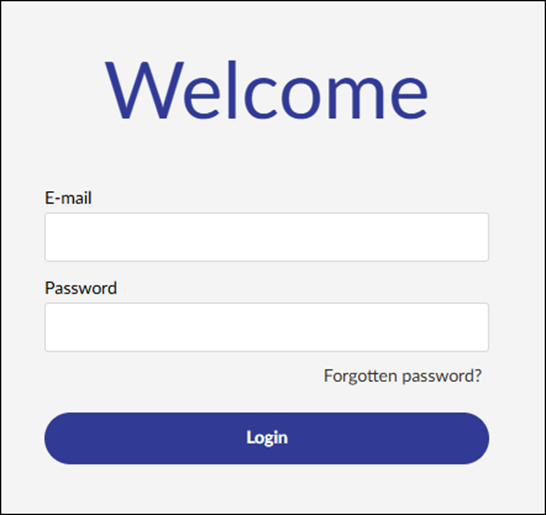
To login, enter the e-mail and password provided to you by your System Administrator.
Use the Forgotten Password link to reset your Backoffice password. This function assumes that the Backoffice has been properly configured to send email notifications.
Navigation
The main navigation of the Backoffice.

Content
The Content section contains the content of the website. Content is displayed as nodes in the content tree.

Media
The Media section stores the portal’s media assets. By default, administrators and content authors can organize media into folders and upload files such as images, PDFs, documents, and other downloadable resources.
Settings
The Settings section is where you can work with the website layout files, languages, and define media and content types. Only knowledgeable users should be making changes in this section.
VLP
The VLP section is a custom area where you can configure settings specific to the behaviour of the Dynamics 365 portal integration. See more details in the Administrator Guide.
Packages
In this section, you can browse and install packages into your Umbraco environment.
Users
Manage, create, and customize Backoffice users and user groups.
Members
Manage, create, and customize portal members and member groups.
Translation
This section is not currently used by Vertical Lift Portal.
Backoffice Password Change
To change the Backoffice password, click the initials in the upper right corner and then select Change Password.
