The Data List widget uses a Razor view with embedded Liquid to render records in Vertical Lift Portal. The Razor view provides the widget’s underlying structure and handles its integration with the portal. Liquid provides a template layer for controlling how the list and its records appear.
This allows a developer to tailor the presentation of a list without building a separate widget for each layout. For example, a template can display records as a table, cards, or a compact summary, and use Liquid conditions to show different content when a field is empty or a list has no records.
The Data List widget can be placed on a data-enabled form or on a page that has no form configuration. In either case, its template determines how the resulting data is presented to the visitor.
Configuration
| Property | Description |
| Configuration | Defines the FetchXML query used to retrieve and populate the records displayed in the list. |
| Relationship | Defines the relationship between the Data List and the Form when the list is used within a form. This property is only configurable when the Data List is placed on a form. |
| Show Paging | Displays paging control under the data list. |
Configuring the Query
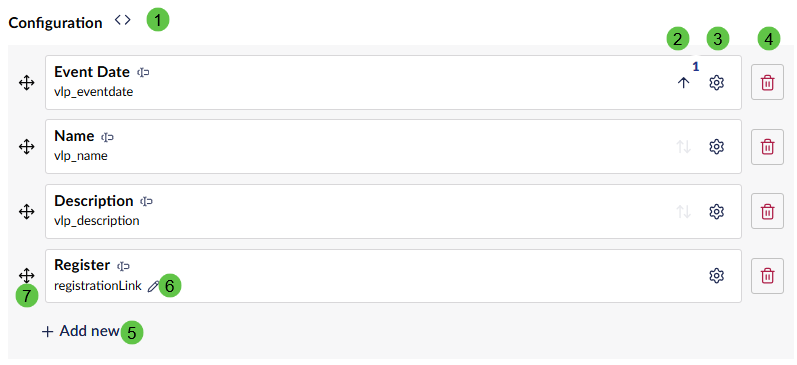
| Function | Description |
| 1 | Opens the FetchXML editor used to configure the query that retrieves the Data List records. |
| 2 | Defines the sort direction and sort priority applied to the FetchXML result set. |
| 3 | Applies custom formatting to the values displayed in the column. |
| 4 | Removes the column from the configuration and from the underlying FetchXML query. |
| 5 | Adds a link to the list of data fields that points to another URL. If desired, the ID can be passed to the URL as a parameter.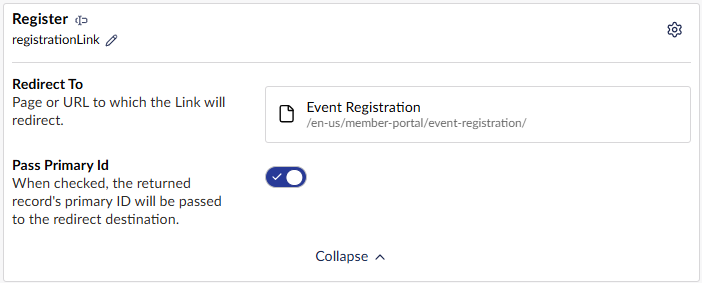 |
| 6 | Allows editing of the link name. |
| 7 | Allows the fields to be reordered (however the actual order displayed in the portal is determined by the template.) |
Setting the Template
Data List templates must be developed as part of the VL Portal’s Umbraco application code. A developer creates the Razor view, including its Liquid markup, and deploys it with the portal. Once the template is available in the application, it can be used by the Data List widget.
Adding a Data List widget in Umbraco does not create a new template. If a new layout is required, a developer must first build and deploy the new template.
Step 1. To configure the Data List to use a pre-existing template, navigate to Settings:

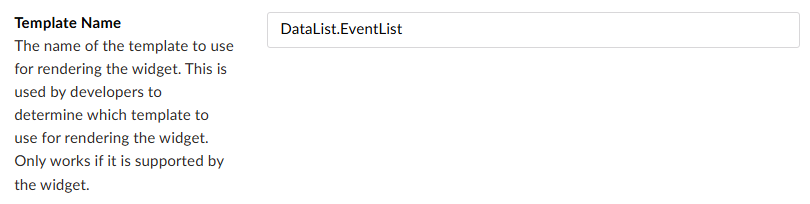
Step 2. Enter the template name provided by the developer/system admin in the Template Name field.
Step 3. Click Update to save the changes.
For more information on defining the template, refer to the Vertical Lift Portal Developer documentation.
Example Output (with paging)